 by Printer Brands
 Label Tape
 Ink
Ink Toner
Toner Label Roll




 Ribbon













 Label Printers
 Office Supplies
 Other
Other
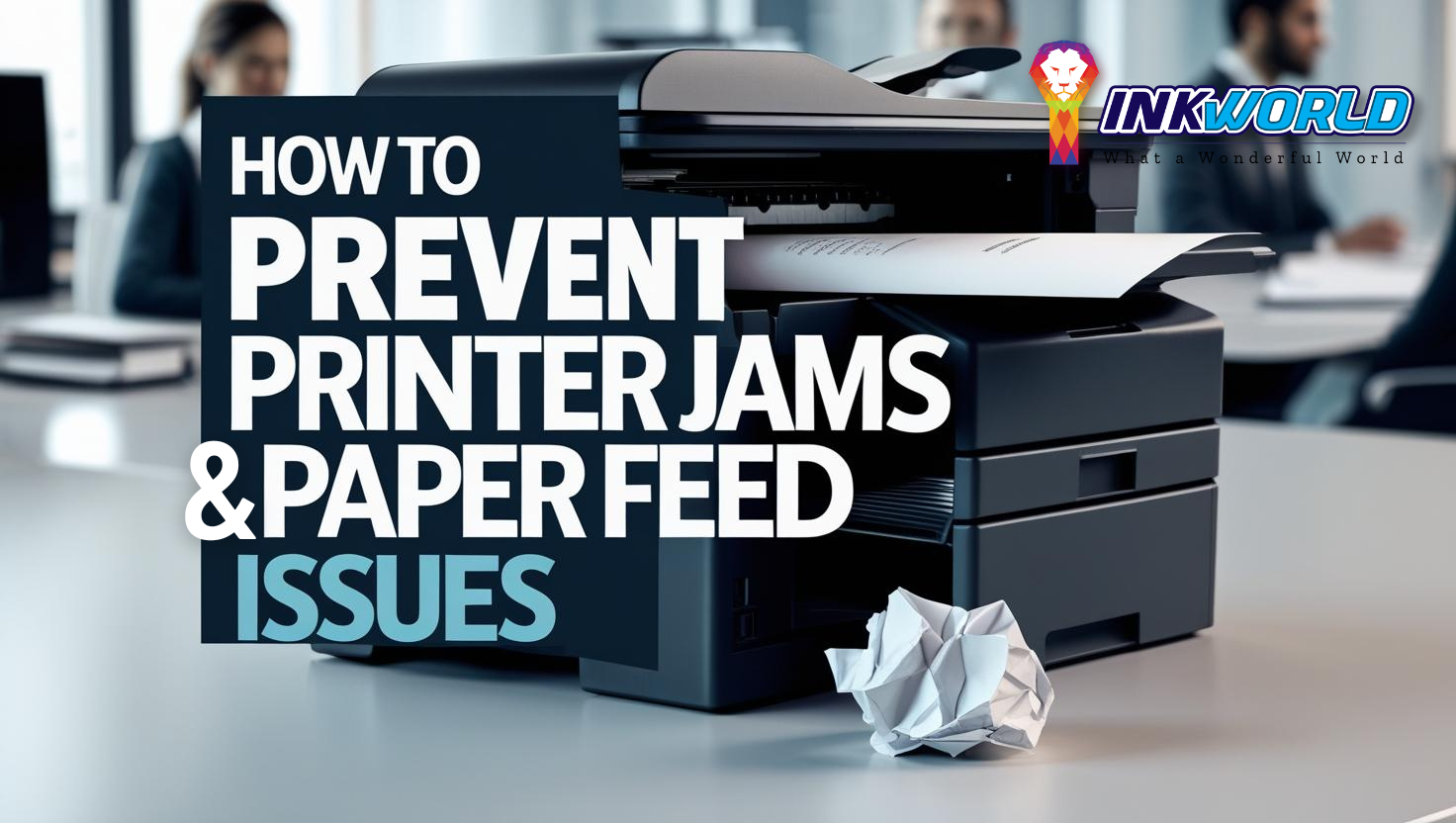
- Imagine you’re just about to meet a deadline when your printer suddenly stops. It shows a ‘paper jam’ error. Printer jams and paper feed problems are more than just annoying. They can slow you down and make you feel frustrated.
But have you considered stopping these problems before they happen? In Singapore, where time is of the essence, knowing how to solve paper jams quickly is key. Using low-quality paper or ignoring your printer’s upkeep can cause jams. You can avoid these issues by taking care of your printer and using the right paper.

printer jams, paper feed, troubleshooting printer errors
Key Takeaways
- Understand the common causes of printer jams to prevent them proactively.
- Invest in high-quality paper that is less likely to jam.
- Regular maintenance of printer components can significantly prevent paper feed issues.
- Follow manufacturer recommendations for paper size and weight to avoid jams.
- Learn the correct steps to troubleshoot and fix a paper jam without causing damage to your printer.
Understanding the Root Causes of Printer Jams
Dealing with a printer jam can be annoying, especially when it messes up your work. Knowing what causes these problems is key to stopping these problems. Many things can lead to jams, from the paper type to the humidity in the air.
Common Causes of Printer Jams
Most jams happen because of the wrong paper. It could be the wrong size, too thick, or not the right quality. Always use the paper type your printer guide says to avoid jams.
The Impact of Paper Type and Quality
Choosing the right paper is crucial to avoid jams. Low-quality or wrong paper can cause problems because it doesn’t fit your printer’s needs. Using the right paper can make your printer work better and last longer.
Humidity and Its Effect on Paper
High humidity can make paper absorb moisture, swell, warp, or stick together. This often causes jams. Keeping your printing area dry helps keep your paper in good shape.
Knowing these points helps you prepare for and prevent printing issues. Regularly looking after your printer and choosing the right materials is important. It keeps your office equipment running smoothly.
Printer Jams, Paper Feed, Troubleshooting Printer Errors
Knowing how to fix a paper jam in your office quickly is vital. First, turn off the printer. This is a safety step that helps avoid more damage when you remove the jammed paper.
Incorrect paper types or wrong loading are common causes of jams. Always check your printer’s manual for the right paper and loading method. Here’s a look at paper types that work well and those that might cause jams.
| Paper Type | Suitable for Printer Model | Common Outcome |
| Standard Office Paper (80 gsm) | Yes | Rarely Causes Jams |
| Glossy Photo Paper | Only for Specific Models | May Lead to Jams if Incorrect Model |
| Heavy Cardstock | No | Frequent Jams |
| Recycled Paper | Yes, if Smooth | Occasional Jams |
Also, check the paper and tray for debris or residue. Small bits can cause jams over time. Make sure the paper tray is clean and works smoothly.
To avoid future jams, set up regular checks and clear blockages early. Regular maintenance keeps your printer running well for longer.

Troubleshooting printer errors
Step-by-Step Guide to Clearing Paper Jams
Dealing with a printer jam can be frustrating. It’s important to handle it carefully to avoid damaging your printer. The first step is to turn the printer back off to keep it safe and prevent damage.
Start by turning off the printer and unplugging it. This step is crucial for your safety and to protect the printer’s internal parts.
Next, inspect the paper path carefully. Look from the paper or manual feed tray, depending on the jam’s location. Open the access panels and doors to find the stuck paper.
When you find the jam, start to remove any paper that’s stuck. Pull the paper slowly in the direction it normally goes. Avoid pulling it back, as this can cause it to tear and make the jam worse. If you feel resistance, stop and think about how to pull it out safely without damaging the printer.
| Step | Action | Precaution |
| 1 | Turn off and unplug the printer | Ensures safety and protects printer mechanics |
| 2 | Open access panels and inspect | Identify the paper jam location without forcing components |
| 3 | Gently remove the jammed paper | Pull in the direction of the paper path to avoid tearing |
After removing all visible paper, check for any small pieces left inside the printer. These can cause future jams. Once you’re sure there are no more pieces, put back any parts you took out and plug in the power.
By following these steps carefully, you can fix a paper jam without damaging your printer. This ensures your printer keeps working well and lasts longer.
Choosing the Right Paper to Avoid Jams
Choosing the right paper is key to your printer’s efficiency. Use the recommended paper that fits your printer’s needs to avoid jams and keep print quality high. Here’s a guide to picking the right paper and why investing in quality is worth it.

Choosing the Right Paper
Every printer has specific paper weight and size needs, as shown in the User Guide. Manufacturers provide these details to help you avoid jams and maintain print quality. Thicker paper is best for high-resolution prints, but it might not be needed for everyday use.
The Importance of Using High-Quality Paper
Choosing high-quality paper does more than prevent jams. It also improves the look and durability of your prints. Better paper absorbs ink, making prints sharper and lasting longer. This can save you money in the long run, as fewer jams mean less need for repairs.
Using the right paper is more than just avoiding jams. It’s about making your printer work better and print quality last longer. Always check your printer’s user guide for the best paper to use for a better printing experience.
Maintenance Tips to Prevent Paper Feed Issues
Keeping your printer running smoothly is key. Regular upkeep, especially for the rollers that feed paper, is crucial. It helps prevent paper jams and keeps your printer in good shape for longer.

printer maintenance tips
Cleaning the rollers that feed paper into your printer is vital. Dust and debris can build up over time, causing paper feed problems. So, clean these parts with a damp cloth every month. Ensure that you only dampen the rollers and avoid touching any electronic parts to avoid damage.
Printer maintenance goes beyond just cleaning. It’s also about following a routine. For the best printer care:
- Check your printer’s user manual for maintenance tips. It will tell you when to replace parts and when to do deep cleaning.
- Look at the paper guides and rollers regularly for wear. This helps you spot problems before they cause a jam.
- Do a monthly check on the rollers that feed paper. If they’re worn out, replace them to keep your printer running smoothly.
By keeping these parts in good condition, you can avoid paper jams, ensuring your office equipment works reliably and efficiently.
Adjusting Printer Settings for Optimal Performance
To avoid printer jams and keep your device running smoothly, it’s key to tweak your printer settings. This includes how you load the paper and adjust the paper tray. Getting the alignment right and setting the correct settings for different paper types can reduce printing mistakes.

Adjusting Printer Settings
First, make sure you’re using the right paper for your print jobs. Different tasks require different paper thicknesses and qualities, so it’s important to adjust your printer for these variations. For example, thicker paper might need a different setting than regular office paper.
| Paper Type | Recommended Settings |
| Standard Office Paper (80 gsm) | Default |
| Glossy Photo Paper | Increase thickness setting |
| Cardstock | Manual feed tray; increase pressure |
| Envelopes | Envelope setting: reduce speed |
Adjusting your device’s settings for the paper type improves print quality and reduces jam risks. Always check and realign the paper tray when you change paper types or load new paper. This ensures paper feeds smoothly and correctly, matching the set settings for the best results.
These tweaks might seem like a chore, but they’re crucial for your printer’s health and function. Regular checks on paper loading and tray settings can save you time and money, making printing easy and stress-free.
When to Seek Professional Help for Printer Jams
Occasional printer jams can often be fixed with simple steps. But if jams keep happening, it’s time to call in the experts. They can help you figure out why your printer keeps jamming.
Printer experts do more than just fix your printer. They also check for deeper problems that you might not notice. This is important to avoid bigger issues or damage to your printer.
Using managed print services (MPS) can help prevent printer jams. Here’s why getting professional help is good for your printer’s health and performance:
Identifying Issues Beyond Basic Troubleshooting
Figuring out why your printer jams frequently requires special tools and skills. MPS providers use advanced methods to check your printer and ensure that every problem is found and fixed.
This includes checking how your printer works under different conditions. It helps them give you solutions that stop jams from happening again.
Benefits of Managed Print Services (MPS)
MPS providers take care of your printing needs. They do regular checks, give advice on settings, and offer quick help when you need it. Here’s what you get:
- Optimisation of Printer Settings: They adjust your printer to work best for your business.
- Scheduled Maintenance: Regular checks stop small problems from getting bigger.
- Access to Expertise: You get help from experts who know printers inside out.
Managed print services help avoid jams and keep your business running smoothly. They make sure your printing equipment works well and reliably.

Managed Print Services
Choosing MPS is smart if you print a lot for work. In today’s fast-paced world, keeping your business running without interruptions is key, and an MPS partner can help you do just that.
| Service Feature | Benefits |
| Customised Printing Strategies | Enhanced efficiency and targeted solutions for your specific needs. |
| Professional Assistance | Access to experts for deep-seated printer issues and optimised maintenance plans. |
| Optimisation of Resources | Reduced waste and cost-efficient use of printing supplies and machinery. |
Adopting MPS is a smart way to manage your printer needs. It reduces the chance of jams and keeps your business running smoothly. Your devices will be reliable and well-maintained.
Conclusion
To keep your printer running smoothly, follow the advice from earlier sections. Start by using the right paper type and weight. Also, don’t forget regular maintenance, like cleaning the rollers.
Knowing why printer jams happen helps you fix them quickly. This way, you can keep your workflow in Singapore going without a hitch.
When you need to remove jammed paper, do it carefully. This prevents damage to your printer. After clearing the jam, restart your printer correctly. This resets its mechanisms.
Simple steps can often solve paper feed problems. Adjusting printer settings for your paper can also help. But if issues keep coming back, think about Managed Print Services.
These services can solve your problems and improve your printer’s performance in the long run.
The secret to a smooth document workflow is preparation. Choose the right supplies and have a maintenance plan. This will make your equipment last longer and work better.
By taking good care of your printer, you avoid problems like paper jams. This keeps your work flowing smoothly.
FAQ
How can I fix a paper jam in a printer?
To fix a paper jam in a printer, first turn off the printer and unplug it for safety. Open the printer doors and carefully locate the jammed paper. Gently pull the paper out in the direction it feeds through the printer, being cautious not to tear it. After removing the jammed paper, check the paper path for any remaining bits of paper. Restart the printer and try feeding paper through it again.
How do I ensure proper paper loading to avoid paper jams?
To ensure proper paper loading, only use the recommended type of printer paper for your specific model. Load the paper correctly in the tray, ensuring the paper guides are tight against the paper without bending it. Avoid loading too much paper in the tray, leading to jams. Additionally, check that the paper is not curled or damaged before loading.
What type of paper should I use to prevent printer paper jams?
Always use the type of printer paper your printer is designed to handle to prevent printer paper jams. Check the printer’s specifications for the recommended paper weights and sizes. Proper paper that meets these specifications can reduce the likelihood of encountering jams and improve print quality.
Why does my printer keep jamming even after I fix it?
If your printer keeps jamming, it may be due to several reasons. One common reason is the presence of even tiny bits of paper left in the paper path. Additionally, using incorrect paper or not aligning the paper properly can lead to recurring jams. Regular maintenance, such as cleaning the printer and checking for worn-out parts, can help resolve these issues.
How can I maintain my printer to avoid future jams?
To maintain your printer and avoid future jams, regularly clean the printer components, including the paper path. Always use the correct paper type and size recommended by the manufacturer. Ensure the printer is kept in a cool, dry place to prevent humidity from affecting the paper quality. Store your paper properly to avoid curling or damage, and routinely check for any bits of paper that may cause jams.
What should I do if the paper is stuck in the printer?
If the paper is stuck in the printer, first turn off the printer and disconnect it from the power source. Then, open the printer covers and gently pull the paper out from the paper path. Be careful not to apply too much force, as this could damage the printer. Once the paper is removed, check for any remaining bits of paper and inspect the paper guides to ensure they are properly aligned.
Can using the wrong paper type cause printer paper jams?
Yes, using the wrong paper type can cause printer paper jams. Printers are designed to handle specific paper weights and types, and using incorrect paper can lead to feed issues. Refer to your printer’s manual for the recommended paper types and sizes to avoid jams and ensure optimal printing performance.