 by Printer Brands
 Label Tape
 Ink
Ink Toner
Toner Label Roll




 Ribbon













 Label Printers
 Office Supplies
 Other
Other
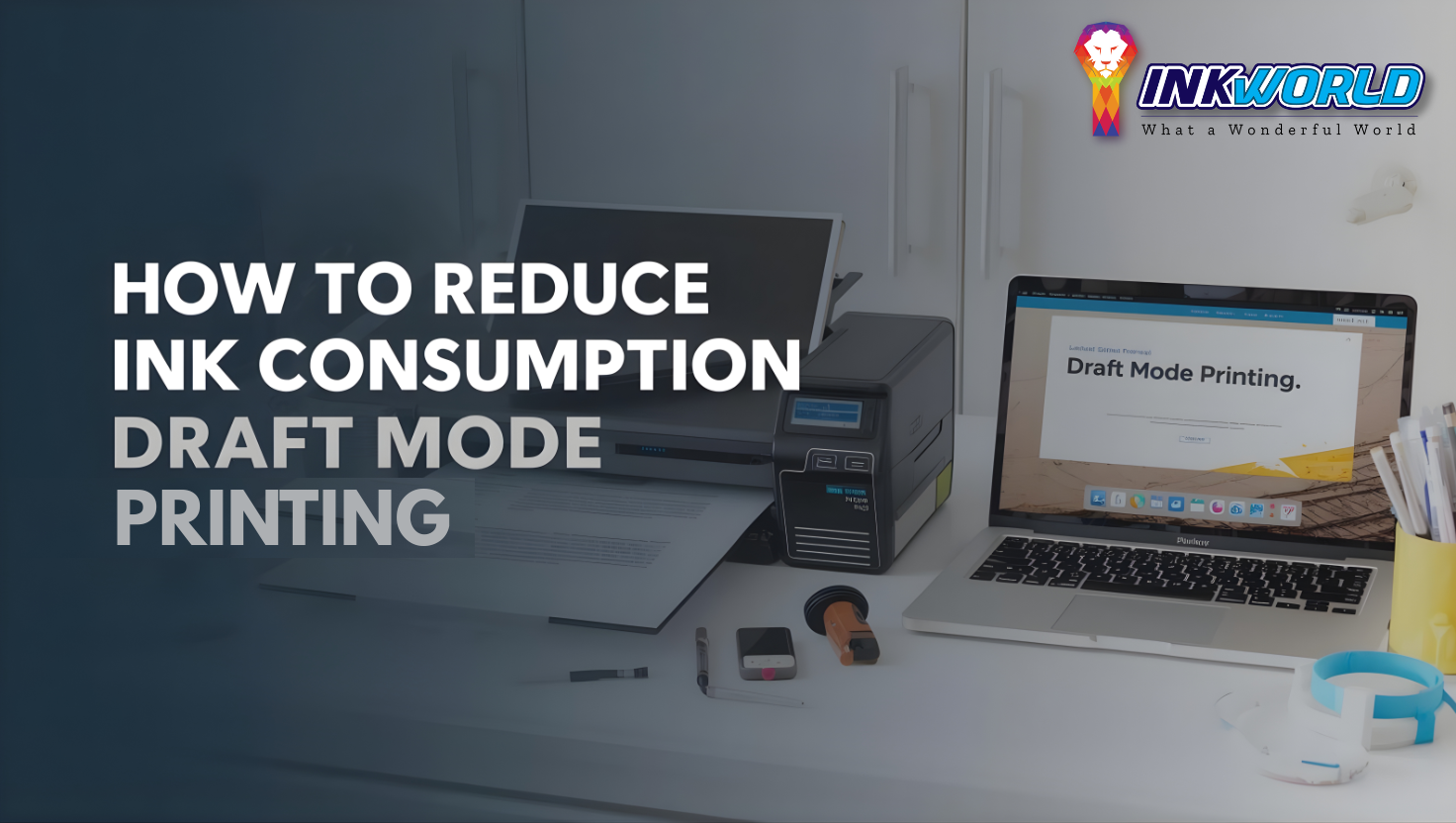
In Singapore’s humid climate, printer ink seems to disappear faster than you’d expect. With ink cartridge prices ranging from S$25 to S$85, extending their lifespan is essential for both home users and businesses. Draft mode printing offers a practical solution that can reduce ink consumption by up to 50% while maintaining readable output for everyday documents. This guide will show you how to enable draft mode on popular printer models available in Singapore, when to use it, and when to switch back to high-quality settings for your important photography printing needs.
What is Draft Mode Printing?

Draft mode (sometimes called “fast mode” or “economy mode”) is a printer setting that uses less ink while printing faster. When you select draft mode, your printer deposits fewer ink droplets on the page, creating lighter text and images that remain perfectly readable for most purposes.
The technology works by reducing the density of ink dots per inch (DPI) and sometimes by printing in a single pass rather than multiple passes. This not only saves ink but also reduces wear on your printer’s components and significantly speeds up the printing process.
Most modern printers in Singapore, including popular brands like HP, Canon, Epson, and Brother, offer draft mode options. The exact ink savings vary by model, but users typically report a 30-50% reduction in ink consumption when using this feature regularly.
Our Singapore Printer Settings Blog and More
View blogs about a comprehensive guide to optimal printer settings for Singapore’s climate and common printer issues.
InkWorld BlogsWhen to Use Draft Mode Printing

Draft mode printing is ideal for many everyday printing scenarios. Understanding when to use it can help you balance quality needs with ink conservation.
Perfect for:
- Internal office documents and memos
- Homework assignments and study materials
- Recipe printouts for kitchen use
- Shipping labels and packing slips
- Personal reference materials
- Early drafts of reports and documents
- Spreadsheets for personal review
Real Savings:
A typical Singapore household that prints 50 pages per month can save approximately S$8-15 per month by using draft mode for 80% of their printing needs. Over a year, that’s a potential saving of S$96-180 – enough to cover the cost of a new set of ink cartridges!

When to Avoid Draft Mode

While draft mode is excellent for everyday documents, there are situations where you’ll want to use standard or high-quality print settings instead:
Not Recommended for:
- Professional photography, printing, and portfolio work
- Client-facing business proposals and presentations
- Marketing materials and brochures
- Important legal documents and contracts
- Résumés and job applications
- Wedding invitations and formal correspondence
- Fine art reproduction and gallery prints
Photography Printing Tips:
For high-resolution photography printing in Singapore, consider these alternatives to draft mode:
- Use “Standard” or “Photo” quality settings
- Select the appropriate paper type in printer settings
- Consider using printer profiles for colour accuracy
- Print photos in batches to minimise ink wastage
- Maintain proper humidity levels (important in Singapore’s climate)
Step-by-Step Guide: How to Enable Draft Mode
The process for enabling draft mode varies slightly between different printer brands and operating systems. Here’s how to set it up on the most popular printer models available in Singapore:

For Windows Users:
- Open Control Panel on your Windows computer (search for “Control Panel” in the taskbar)
- Navigate to “Hardware and Sound” > “View Devices and Printers”
- Right-click on your printer and select “Printing Preferences”
- Look for the “Quality” tab or similar option (varies by printer model)
- Select “Draft,” “Fast,” or “Economy” mode (terminology varies by manufacturer)
- For additional ink savings, select “Grayscale” if you don’t need colour
- Click “Apply” or “OK” to save your settings

For Mac Users:
- Open the document you want to print
- Select File > Print from the menu
- In the Print dialogue, click on the pop-up menu (likely showing “Layout” by default)
- Select “Quality & Media” or “Print Settings”
- Look for “Quality” options and select “Draft,” “Fast,” or “Economy”
- For additional savings, select “Grayscale” or “Black & White”
- Click “Print” to save these settings and print your document

Directly on Printer (For Models with Control Panels):
- Navigate to the printer’s main menu using the control panel
- Look for “Settings,” “Setup,” or “Preferences”
- Select “Print Settings” or “Print Quality”
- Choose “Draft,” “Economy,” or “Fast” mode
- Save your settings (usually by pressing “OK” or “Set”)
Looking for a Printer with Efficient Draft Mode?
Explore a selection of photo printers that deliver excellent draft-mode efficiency while maintaining superior quality for your photography printing needs.
Shop Photo PrintersBrand-Specific Instructions for Popular Printers in Singapore
| Printer Brand | Draft Mode Name | Location in Settings | Additional Notes |
| HP | Fast/Draft/EconoMode | Quality tab or Quick Setup | Some HP models allow saving as the default in the HP Smart app |
| Canon | Fast/Standard/Draft | Main tab > Print Quality | PIXMA series has dedicated ink-saving options |
| Epson | Draft/Economy | Main tab > Quality Options | EcoTank models have additional ink-saving features |
| Brother | Fast Normal/Draft | Basic tab > Print Quality | INKvestment models optimise draft mode efficiency |

Additional Ink-Saving Tips for Singapore Users

Beyond draft mode, there are several other strategies to maximise ink efficiency, especially important given Singapore’s high-humidity environment, which can affect printer performance:
Printer Maintenance
- Run nozzle checks and cleaning cycles only when necessary
- Keep printers in air-conditioned spaces to prevent ink drying
- Use printers regularly to prevent clogging (especially important in Singapore’s humidity)
- Update printer firmware for efficiency improvements
Document Optimization
- Use “Print Preview” to avoid wasting pages
- Print multiple pages per sheet when appropriate
- Use narrower margins to fit more content per page
- Choose efficient fonts (Century Gothic, Times New Roman use less ink)
- Remove unnecessary images from documents
Smart Purchasing
- Consider ink subscription services available in Singapore
- Look for high-yield cartridges for better value
- Explore tank-based systems popular in Singapore (Epson EcoTank, Canon MegaTank)
- Check ink cost per page when purchasing a new printer

Singapore Humidity Tip
Singapore’s high humidity (averaging 80-90%) can cause ink to dry out faster in cartridges. Store unused cartridges in airtight containers with silica gel packets, and keep your printer in an air-conditioned environment when possible to extend ink life.
Conclusion: Balancing Quality and Economy

Draft mode printing offers a practical way to reduce ink consumption without sacrificing readability for everyday documents. By strategically using draft mode for internal documents while reserving high-quality settings for important presentations, photography printing, and client-facing materials, you can achieve significant savings on ink costs in Singapore.
Remember that the best approach is a balanced one: use draft mode as your default for routine printing, but don’t hesitate to switch to higher quality settings when the situation demands it. Modern photo printers are designed to offer this flexibility, allowing you to optimise both quality and economy based on your specific needs.
With the simple steps outlined in this guide, you can start saving ink immediately while still enjoying excellent print results for all your personal and professional needs in Singapore’s unique environment.
Stay Updated with Printing Tips for Singapore
Learn more for regular updates on ink-saving strategies, printer maintenance tips specific to Singapore’s climate, and exclusive deals on printing supplies.
InkWorldFrequently Asked Questions
Will draft mode printing damage my printer?
No, draft mode is a standard feature designed by printer manufacturers and won’t cause any damage. In fact, it may reduce wear on print heads by using less ink and completing print jobs faster.
How much ink can I save using draft mode in Singapore’s climate?
Most users in Singapore report saving between 30-50% on ink consumption when using draft mode regularly. The exact savings depend on your printer model, document types, and usage patterns. In Singapore’s humid climate, proper printer storage is also important for maximising cartridge life.
Can I use draft mode for printing photographs?
Draft mode is not recommended for photography printing or any high-resolution image work. Photo printers should be set to “Photo” or “Best” quality when printing images to ensure proper colour reproduction and detail. Draft mode is best suited for text documents and internal materials.
Why can’t I find draft mode on my printer?
Different manufacturers use various terms for draft mode, including “Fast,” “Economy,” “EconoMode,” or “Toner Save.” Check your printer manual or look under print quality settings for these alternative terms. Some newer models may have it under “Eco Settings” or “Resource Conservation.”
Where can I buy affordable ink cartridges in Singapore?
Popular retailers for printer supplies in Singapore include Challenger, Courts, Best Denki, and online platforms like Lazada and Shopee. Many offer ink subscription services that can provide additional savings. Consider compatible cartridges from reputable brands as a cost-effective alternative to OEM products.